Connect ShowFloor to Zapier, Make, or your own system
When a homeowner sends a request from your website visualizer, or a proposal is sent, viewed, or accepted, ShowFloor sends it to one web address. That address can be a Zapier or Make trigger, or a system your developer builds. From there it goes where you need it: your CRM, a spreadsheet, a team chat.
What you need
- A ShowFloor account. The connection works on every plan.
- A web address to send to. In Zapier, start a Zap with "Webhooks by Zapier" and choose Catch Hook. In Make, use a Custom webhook. If a developer is building it, they give you the address.
Set it up
Open Settings > Integrations in ShowFloor. The first card is "Zapier, Make, or your own system". Its three steps are the three below.
- 1
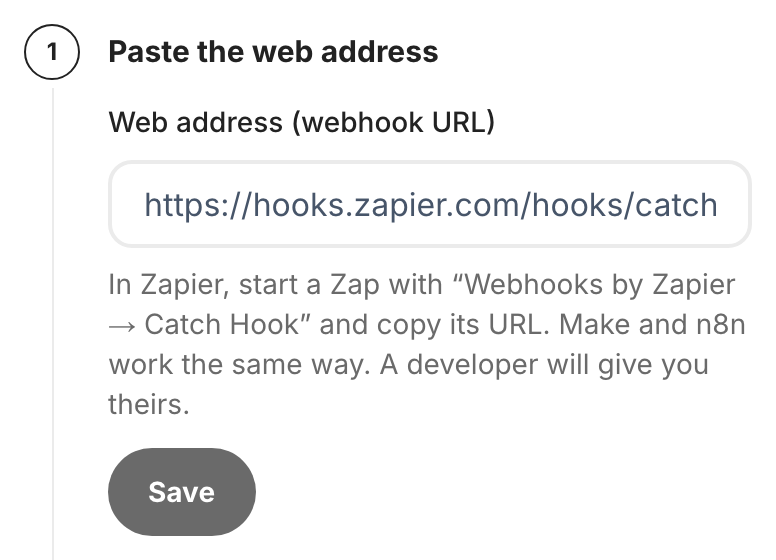
Paste the web address
Paste the address into "Web address (webhook URL)" and press Save. ShowFloor hides the address once it is saved. To change it later, press Replace.
- 2
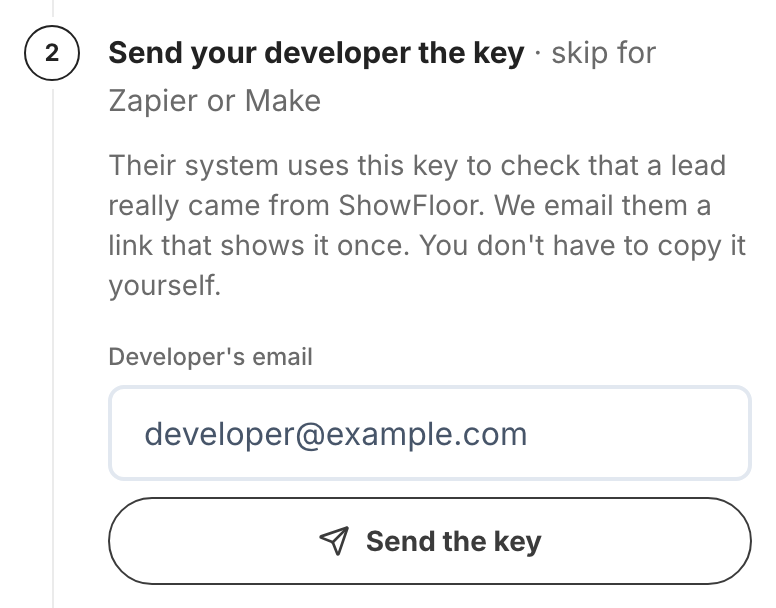
Send your developer the key
Skip this step if you use Zapier or Make. A developer's system uses the key to check that a lead really came from ShowFloor. Type their email and press Send the key. They get a link that shows the key once and expires in 24 hours. ShowFloor shows you when the link was sent, opened, and received.
- 3
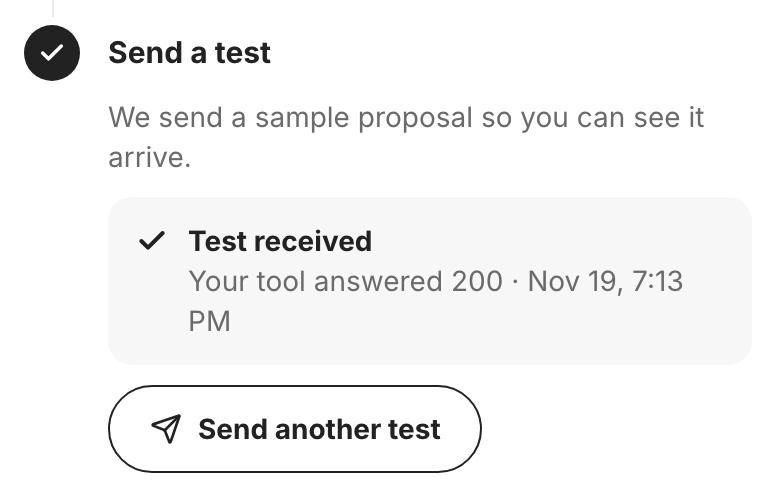
Send a test
Press Send test. ShowFloor sends a sample proposal to your address. When your tool accepts it you see "Test received", and the first test that passes turns sending on. With Website leads switched on you can also press Send a sample website lead, because a lead is laid out differently from a proposal.
Choose what gets sent
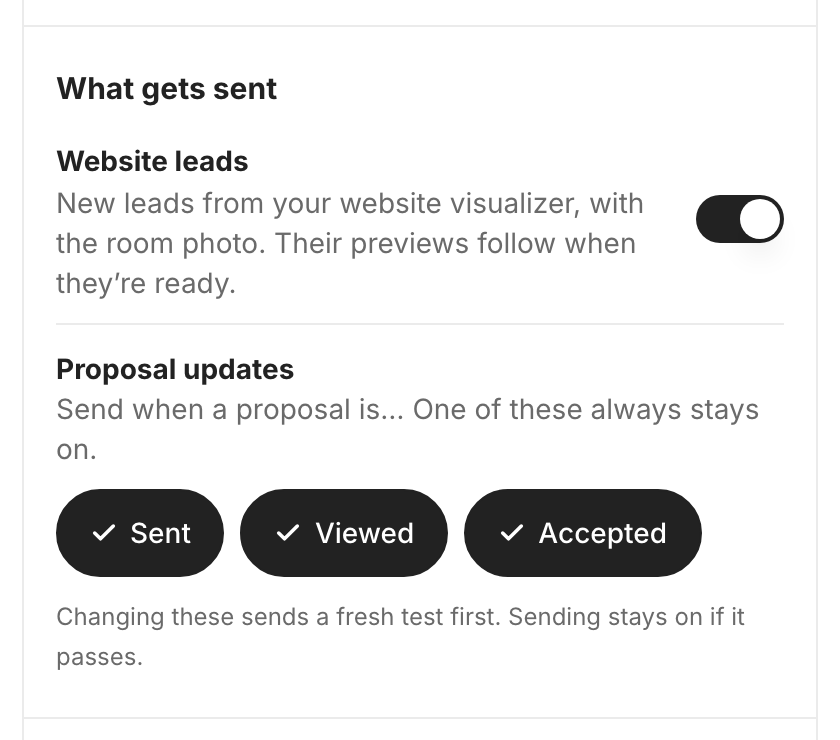
What gets sent
Switch Website leads on or off, and pick which proposal updates go out: sent, viewed, or accepted. One proposal update always stays on. If you only want leads, leave one on and filter it out in Zapier or Make. Changing the proposal updates while sending is on sends a fresh test first, and sending stays on if it passes.
Once it's working
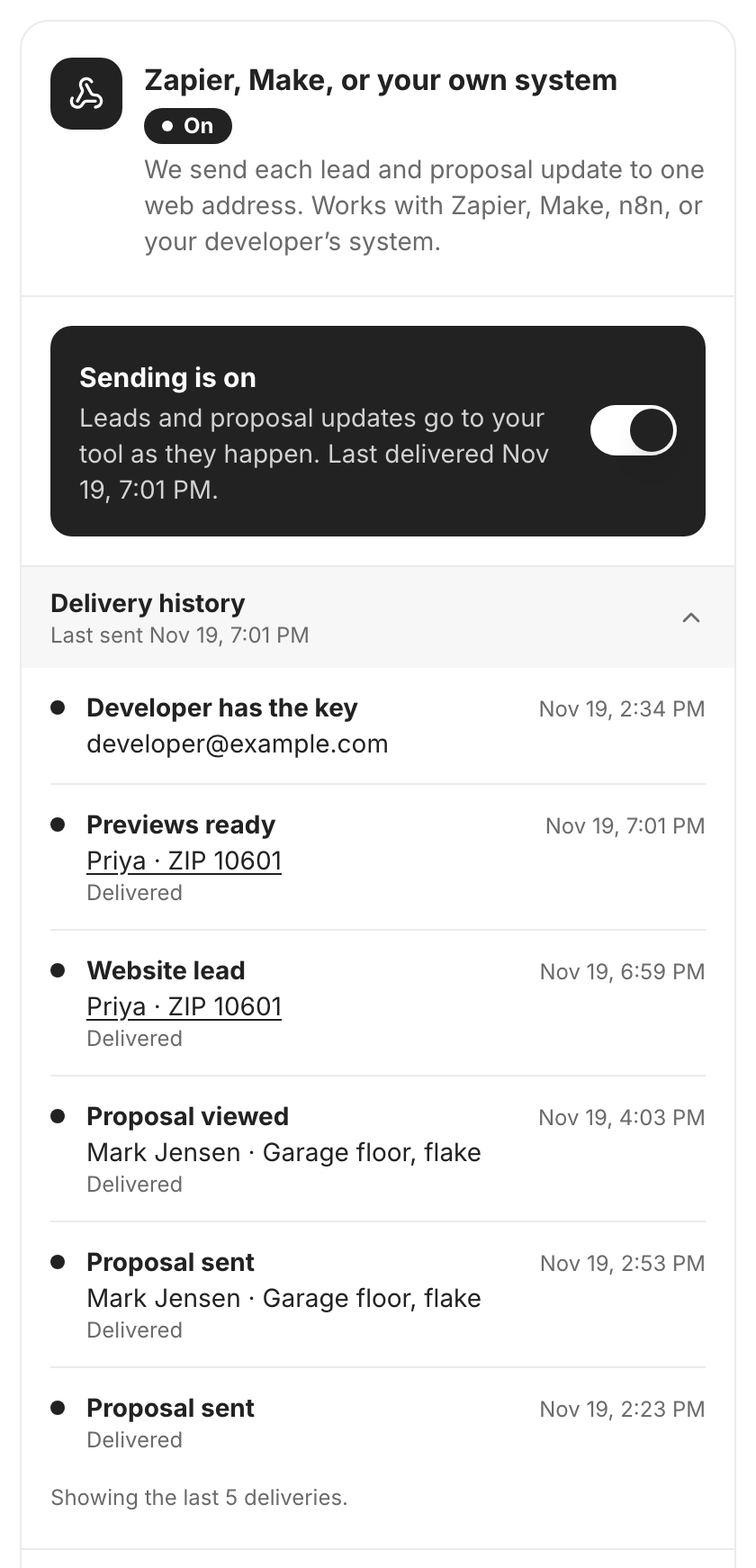
Sending is on
The card opens on a dark bar that says "Sending is on" and when the last update was delivered. The switch on that bar turns sending off and back on.
Delivery history
Right under the bar, Delivery history lists the latest updates ShowFloor sent: what each one was, who it was about, and "Delivered" when your tool accepted it. A website lead links to that lead in ShowFloor. The setup steps fold away under Connection settings.
If something goes wrong
ShowFloor tells you what your tool answered and what to do about it.
Test didn't go through
The message under the Send test button names the step to fix. A 401 or 403 usually means the key on your developer's side doesn't match, so send the key again. A 404 means the web address is wrong or out of date, so replace it.
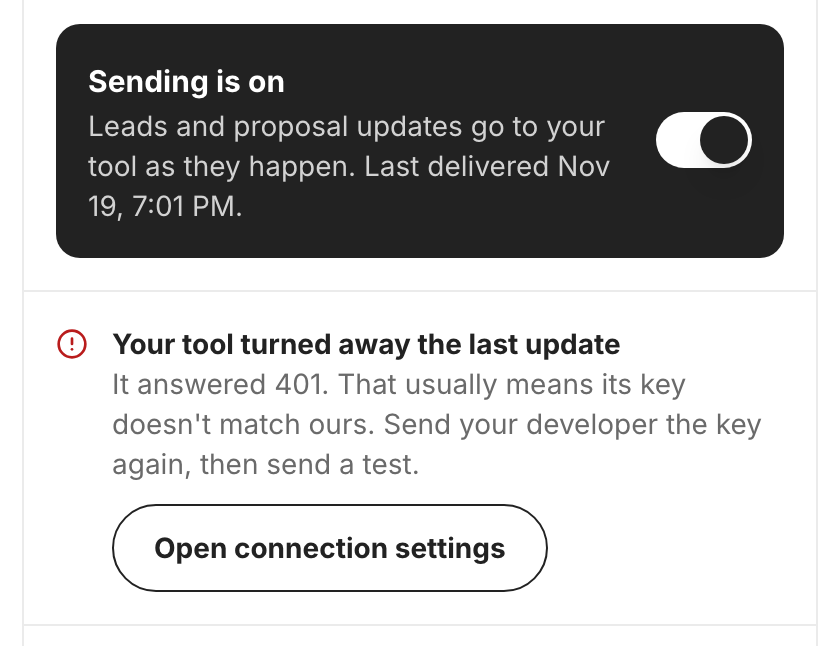
Your tool turned away the last update
This shows at the top of the card when a real lead or proposal update was refused. It gives the answer your tool sent and the fix. Timeouts and "busy" answers are tried again, up to six times over about a day.
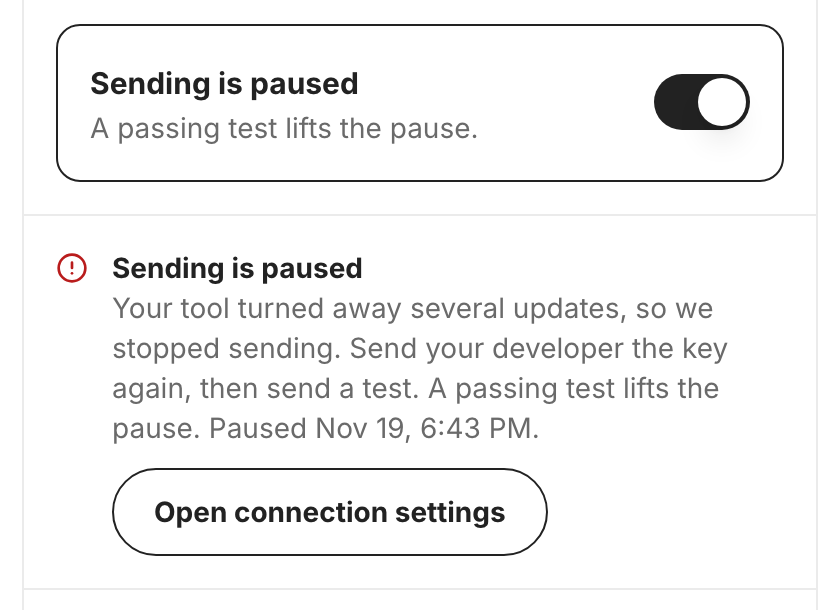
Sending is paused
If your tool refuses three updates with a 401 or 403 and none get through in between, ShowFloor pauses sending. Fix the key, then send a test. A passing test lifts the pause.
What ShowFloor sends
Website leads
- The homeowner's name, email, phone, and ZIP
- Their message and the finishes they picked
- A link to their room photo, which stops working after 7 days
- Links to their finished previews, once those are ready
Proposal updates
- Whether the proposal was sent, viewed, or accepted, and when
- The proposal name and link
- The customer's name, email, phone, and address
- Your company name, phone, and website
Never
- Read anything back from your tool
- Send leads or proposal activity from before you turned sending on
The web address and the key are stored encrypted. See the privacy policy for details.
Common questions
Do I need the key for Zapier or Make?
No. Skip step 2. The key is for a developer's system that checks where each request came from.
Can I send only website leads?
One proposal update always stays on. Leave one on and filter it out in Zapier or Make.
My developer lost the key
In step 2, type their email and press Send a new link. The earlier link stops working.
How do I stop it?
Turn off the switch on the "Sending is on" bar to stop sending and keep your setup. To take it out completely, press Remove this connection at the bottom of the card.
Still stuck? Email [email protected].